


How to create name stickers for kids using AI
Personalised name stickers are such a smart digital or physical product idea. Parents use them for everything during summer and back-to-school season on water bottles, lunch boxes, notebooks, toy bins, travel cups, backpacks… the list never ends. Infact they are searched for many thousands of times every month.

So in this blog post, I’m going to show you how I use
Ideogram and ChatGPT, to create an entire collection of cute personalized stickers in a fraction of the time it used to take. While this tutorial is especially helpful for anyone wanting to start selling digital products online, it’s also perfect for personal use; whether you want custom labels for your child’s water bottle, school supplies, lunch box, or summer camp essentials.
How to Create Cute Name Stickers Using AI + Canva
What You Need
You only need three tools for this:
That’s it.
Step 1: Create Your First Sticker in Ideogram
Head to Ideogram.ai. This is where you will generate the original sticker design and overall aesthetic. Think of this as creating your “base style.”
Prompt: Create a cute name sticker of a cool dinosaur wearing headphones and roller skates. The name “Arlo” is displayed below in fun, colorful letters. The background is a pastel teal color. The entire design has a thick white die-cut sticker border.

Once Ideogram generates a design you love, download it.
Do not worry about making dozens yet. Just focus on getting the aesthetic right first. You may need a few tries to get what you like.
Step 2: Use ChatGPT to Create Variations Faster
At first, I tried using Ideogram to change the names directly on the stickers. But I quickly noticed that if the new name had a different number of letters, things started getting messy. For example, when I tried changing “Jason” to “Arlo,” it gave me “Jarlo.”
That’s when I switched to ChatGPT, and honestly, it worked so much better.
Instead of regenerating the entire sticker from scratch, simply upload your favourite design into ChatGPT and ask it to modify it. You can change the name, character, background color, accessories, or even the entire theme while still keeping the same cute aesthetic.
For example, I told ChatGPT to change Dinosaur Arlo.
Prompt: Change the character to a kawaii girl wearing a hoodie with cat ears, she has blushing cheeks. Update the name to LILY, use a peach background.
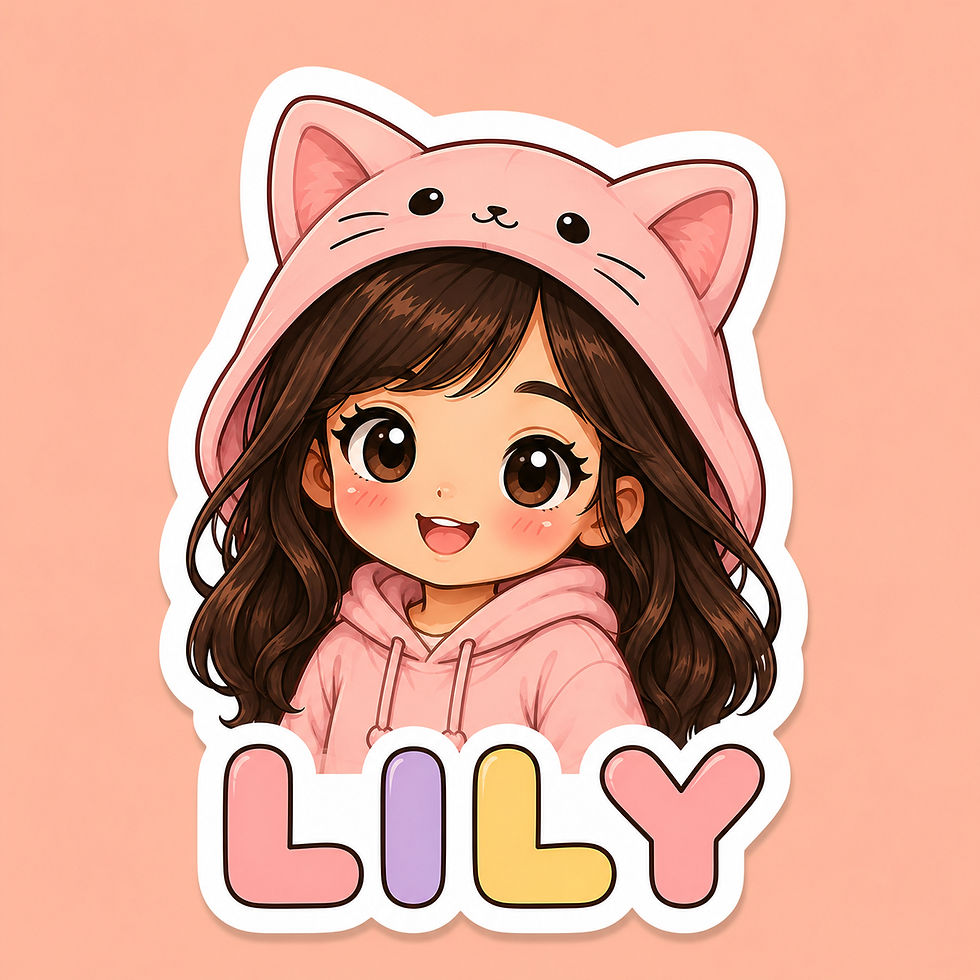
Prompt: Update the character to a toy toe truck, change the name to Thompson, use a soft blue background

You can even attach a reference image when making edits. For example, I gave ChatGPT a screenshot of a digger and asked it to change the sticker character, to my screenshot.

I also gave it a reference image of a dinosaur and asked for a name update to “Aria”

You can pretty much try any edit you want. The best part is that your designs stay consistent, which is really important if you want your Etsy shop to look cohesive and professional.
It also saves a huge amount of time.
Step 3: Create Multiple Themes
Once you have your style locked in, start building collections.
Some popular sticker themes that do really well are:
dinosaurs
construction vehicles
race cars
ballerinas
strawberries
bows
teddy bears
jungle animals
unicorns
astronauts
princesses
gaming themes
farm animals
safari themes
pastel kawaii characters
The more themed collections you create, the easier it becomes to attract different types of buyers.
Parents LOVE personalization.
Step 4: Clean Up and Arrange in Canva
Once your stickers are ready, move everything into Canva.
In Canva you can:
create sticker sheets
create Etsy listing images
add mockups
create sizing charts
add branding
make printable pages
I usually recommend creating:
A main Etsy cover image
A close-up image
A sheet showing multiple names/themes
A “how to print” image
A mockup on a water bottle or notebook
This instantly makes the listing feel more premium.
Step 5: Sell as Printable or Physical Stickers
When it comes to selling, you can go two routes with these:
Printable Stickers
You sell the digital file only.
The customer prints at home or through a print shop.
This is easier to start with because there’s no shipping involved.
Physical Stickers
You print and ship them yourself using:
sticker paper
Cricut
printable vinyl
waterproof laminate
A lot of Etsy sellers start with digital first and then move into physical products once they see which designs sell best. If I was just starting out, this is what I’ll do. Then if I see demand, I can start offering physical products.
Final thoughts
I genuinely think this is one of the easiest digital products anyone can start experimenting with right now.
Once you create one strong sticker aesthetic, you can turn it into dozens of variations surprisingly quickly using Ideogram, ChatGPT, and Canva.
Whether you want to create labels for your own kids or start an Etsy shop for back-to-school season, these stickers are fun to make, highly customizable, and honestly addictive once you get_)))


Comments